
Wi-Fi Studio Inspect. Free.
See every Wi-Fi network around you across 2.4, 5 and 6 GHz, test your connection from device to internet, and find out in plain English where any problem sits.
Get Inspect free for Mac or Windows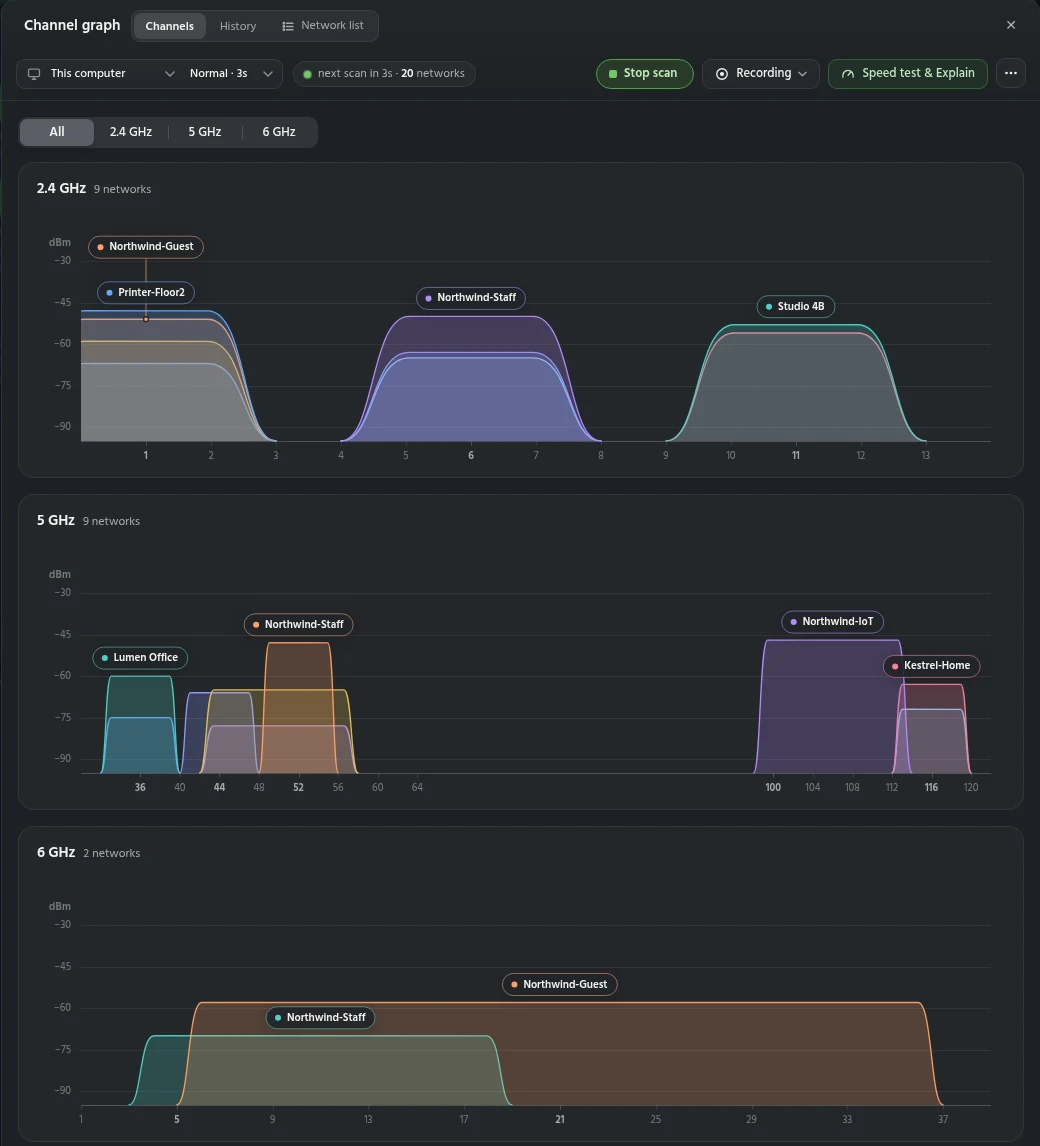
See the Wi-Fi around you.
Slow or patchy Wi-Fi is often down to nearby networks on the same channel. Inspect draws every network around you live, by channel, width and signal, across 2.4, 5 and 6 GHz. Busy and overlapping channels stand out at a glance. The toolbar keeps scanning, recording, band filters and the speed test one click away.
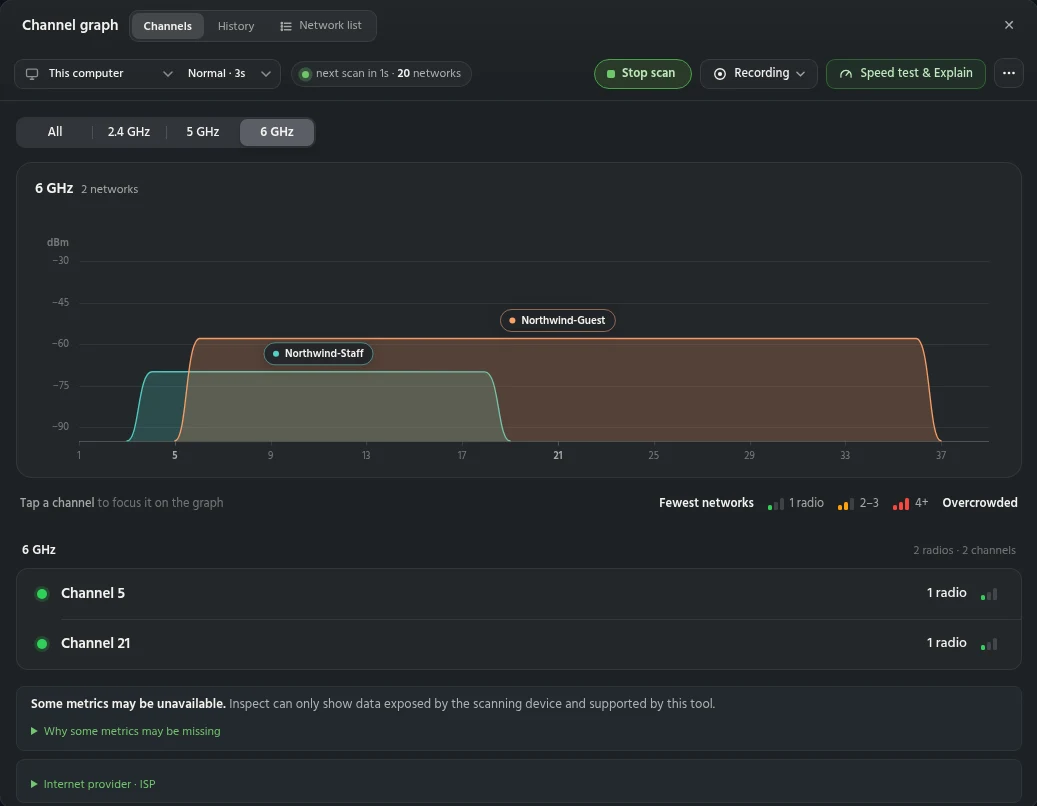
Every radio, grouped by access point.
The graph shows where networks sit, not how each one is set up. Inspect lists every radio in one table, grouped by access point:
- All bands in one table, including 6 GHz
- Band, channel, centre channel and width
- Signal, noise and SNR
- Wi-Fi generation and spatial streams
- Security, PMF and fast roaming (802.11r/k/v)
- Basic rates, beacon interval and DTIM
- Channel use and connected devices, where reported
Some values depend on what your computer's Wi-Fi adapter reports.
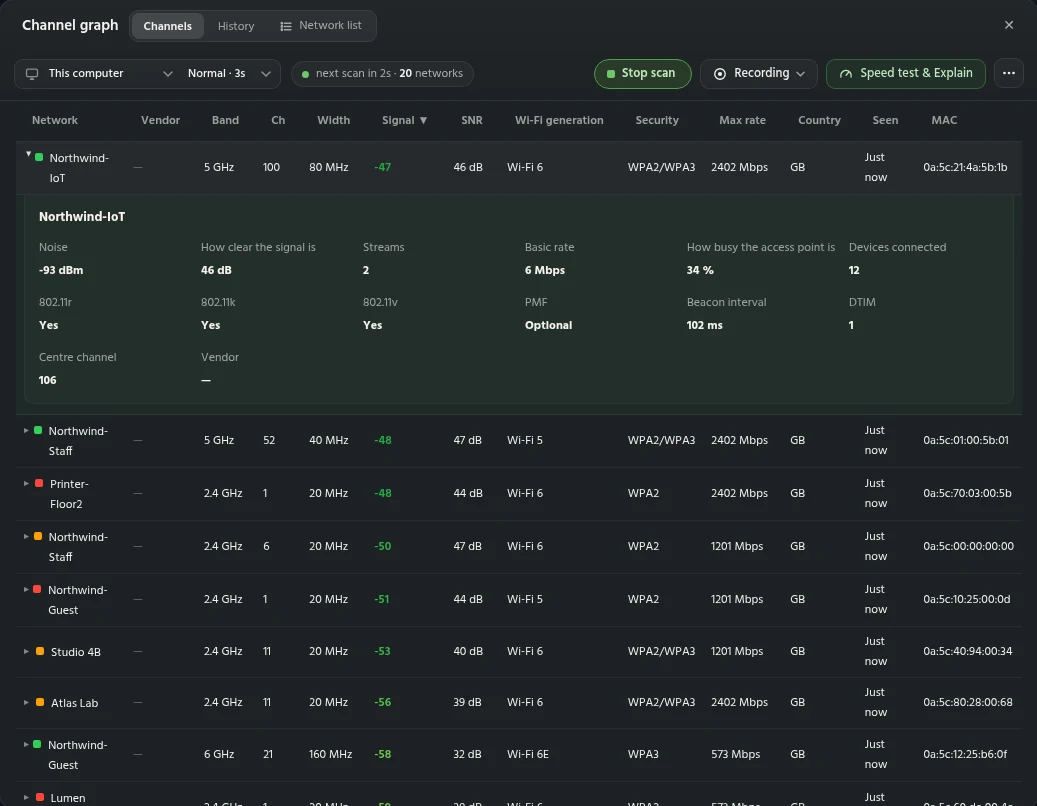
Find the weak link.
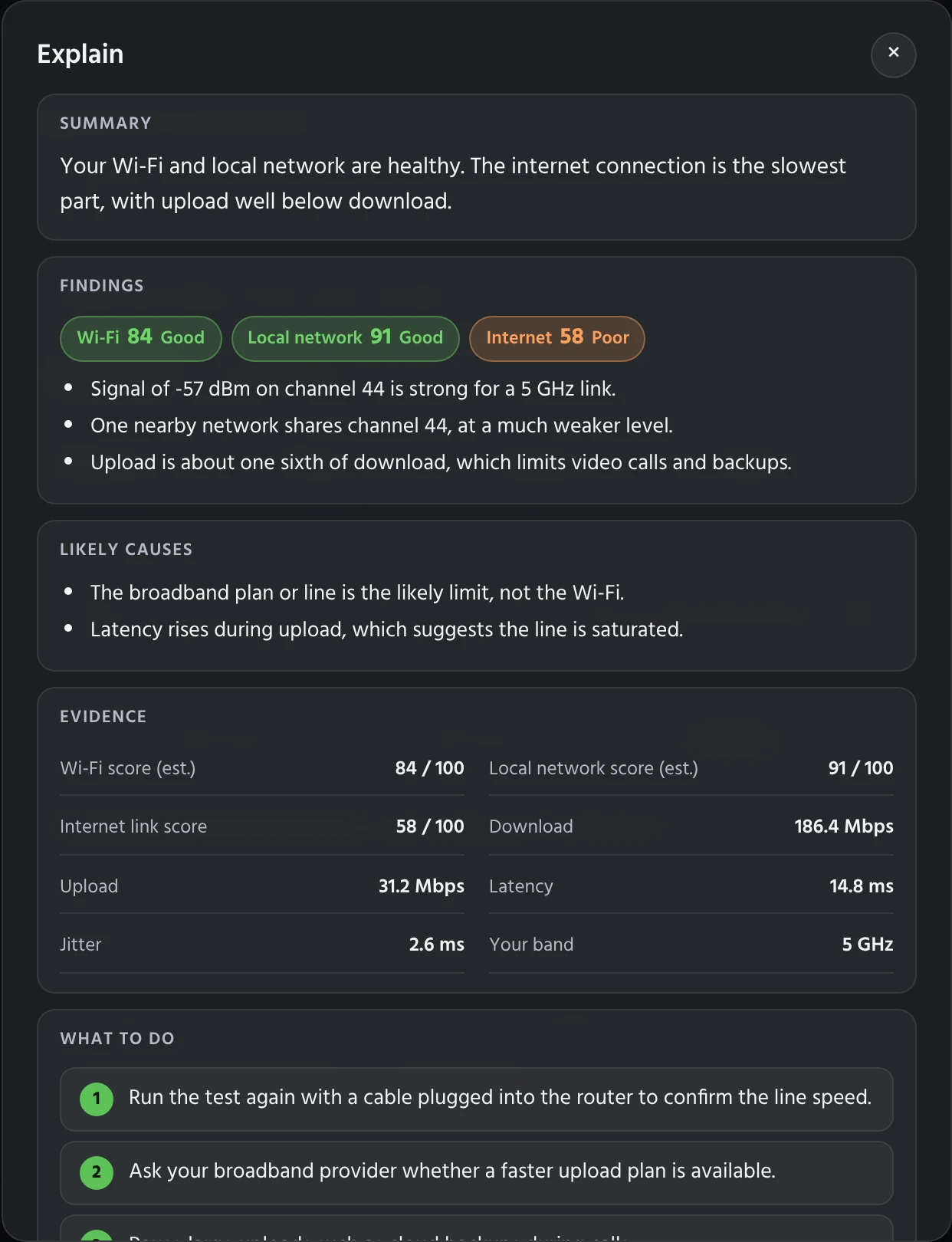
When a connection is slow, it is hard to tell if the Wi-Fi, your network or your broadband is to blame. Inspect runs a speed test for download, upload, latency, jitter and loss, and scores each step of the path: Wi-Fi, local network and internet.
Press Explain for a plain-English summary, the findings, the likely causes, the evidence and numbered next steps.
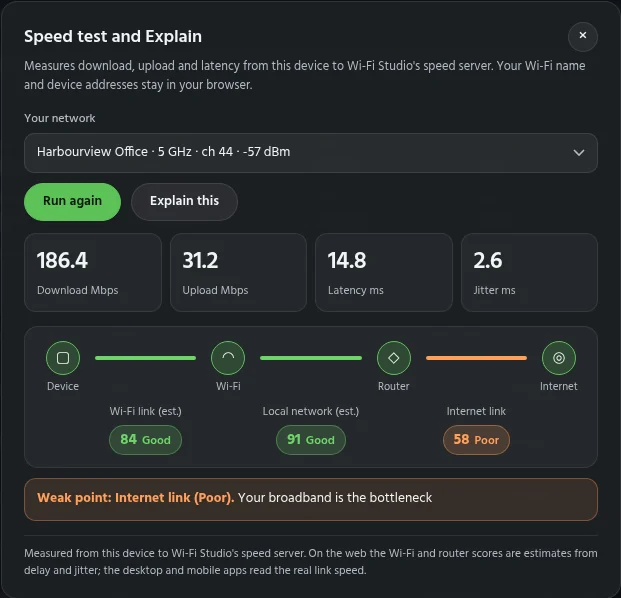
Send proof, not "the Wi-Fi is slow".
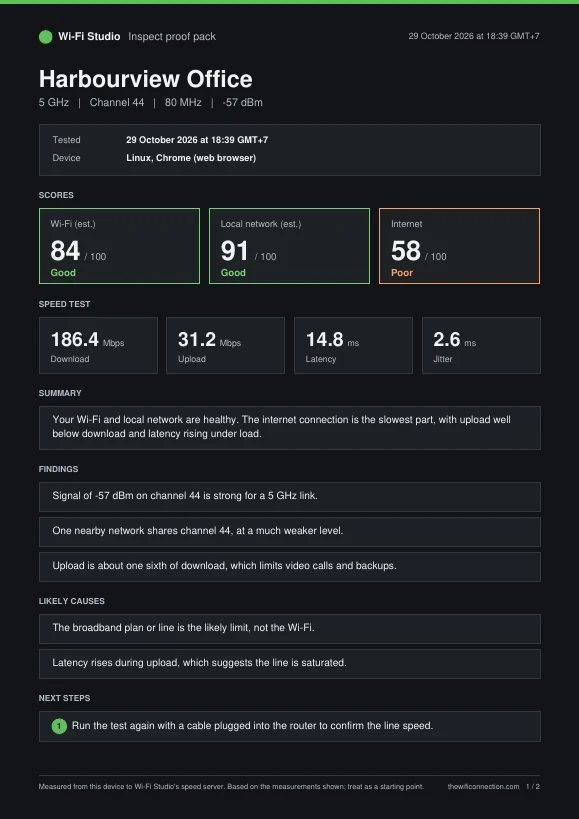
Saying "the Wi-Fi is slow" rarely gets anything fixed. From the Explain window, Download proof pack saves a time-stamped PDF of how the connection was performing and where the problem sits.
It includes the network, signal and channel, a full speed test, scores for Wi-Fi, local network and internet, the explanation and next steps. Send it to your broadband provider, landlord or IT team.
What Inspect does
Inspect is the free tool for Mac and Windows. Here is what you can do with it today.
| Feature | Mac (built-in Wi-Fi)macOS | Mac + WLAN PimacOS | Windows (built-in Wi-Fi)Windows 10 or 11 | |
|---|---|---|---|---|
| Set up | ||||
| Scanner | This computer | WLAN Pi | This computer | |
| Scan | ||||
| Live scan | ||||
| Bands | 2.4, 5, 6 GHz | 2.4, 5, 6 GHz | 2.4, 5, 6 GHz | |
| Network table | ||||
| Noise and SNR | – | – | ||
| Beacon details | Yes, with raw beacons | |||
| RF picture | ||||
| Channel graph | ||||
| History | ||||
| Focus | ||||
| Search and filters | ||||
| Tags and notes | ||||
| Colour rules | ||||
| Compare | 2 to 4 networks | 2 to 4 networks | 2 to 4 networks | |
| Diagnose | ||||
| Issues | ||||
| Speed test | ||||
| Explain | ||||
| Share | ||||
| Export | CSV / PDF | CSV / PDF | CSV / PDF | |
| Proof pack | ||||
Start with Inspect today.
Getting started takes one short form. Your free account is created as soon as you send it, and the download starts straight away. Sign in to the app with the same email; we'll send you a sign-in link. On a Mac, macOS asks for Location permission so the app can show network names. Live scanning needs that Mac or Windows app, or a WLAN Pi. Phones cannot live-scan in Inspect, and the iPhone Shortcut and the Android app are not Inspect live-scan routes. Want Design, Survey or Assure? Use Request access in the app.
Get Inspect for Mac or Windows
Tell us a little about you and we'll set up your free account.
Live scanning needs the Wi-Fi Studio app on a Mac or Windows PC, or a WLAN Pi. Phones cannot scan nearby Wi-Fi in Inspect. The iPhone Shortcut and the Android app are not Inspect live-scan routes.
Your download is ready
Your free Inspect account is ready.
This phone cannot live-scan in Inspect. Download Wi-Fi Studio on a Mac or Windows PC, or use a WLAN Pi. The iPhone Shortcut and the Android app are not Inspect live-scan routes.
Live scanning needs the Wi-Fi Studio app on a Mac or Windows PC, or a WLAN Pi. Phones cannot scan nearby Wi-Fi in Inspect. The iPhone Shortcut and the Android app are not Inspect live-scan routes.
- Open the downloaded file and drag Wi-Fi Studio to Applications.
- Open Wi-Fi Studio from Applications. If macOS asks if you’re sure, choose Open.
- Wi-Fi Studio sits in the menu bar at the top of the screen, not the Dock. Click its icon and sign in with .
- Allow Location when macOS asks, so the app can show network names.
macOS. Version 1.0-16. If you already have an older Mac build, download this one and replace the app in Applications.
- Open WiFiStudio-1.1.5-x64.msi and follow the installer.
- Open Wi-Fi Studio and sign in with .
- Turn on Location services and “Let desktop apps access your location”, so the app can show network names. The tray menu has an Open Location settings shortcut.
Windows 11 version 22H2 or later (x64 or ARM64). Version 1.1.5. On a PC with an ARM processor, download the ARM version instead.
If the installer will not run, email support@thewificonnection.com and include a short description of what you see.
Screenshots show Wi-Fi Studio Inspect with example data.